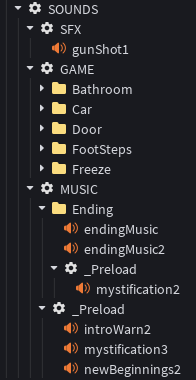
Folder Setup
VluxySF makes it easy to manage all your game’s sounds with a simple, powerful folder structure. This guide will walk you through best practices for organizing, grouping, and preloading your audio assets—no manual registration required!
The Basics: Folder Structure
VluxySF uses your folder structure to automatically group and identify sounds.
You do not need to manually assign SoundGroups or create them.
Why Structure Matters
A well-organized sound folder means:
- Instantly accessible sounds by string
- Automatic grouping for volume/effect control
- Easy preloading for lag-free playback
- Cleaner, more maintainable projects
Legend:
⚙️ = Configuration Instance
📁 = Folder Instance
🔊 = Sound Instance
Naming Conventions:
UPPER_CASEfor SoundGroupsPascalCasefor FolderscamelCasefor Sounds- Avoid spaces and special characters for best compatibility.
- Sound locations are used as keys for programmatic access (e.g.,
Sounds.Create("MUSIC/Explosions/explosion1")).
Example:
SOUNDS⚙️               ← Base file
  ├─ MUSIC⚙️           ← Name of SoundGroup
  │    ├─ mainTheme🔊  ← Grouped to MUSIC SoundGroup
  │    └─ battle🔊     ← Grouped to MUSIC SoundGroup
  └─ SFX⚙️             ← Name of SoundGroup
        ├─ click🔊     ← Grouped to SFX SoundGroup
        └─ explosion🔊 ← Grouped to SFX SoundGroup
Music and SFX become SoundGroups, and their children are grouped accordingly.
Tip: Once
SoundGroupConfigurationsare defined (MUSIC, SFX, etc.), organization within them is your choice.Tip: It is recommended that you only use Folders and Sound Instances while organizing within a defined
SoundGroupConfigurations. The only exception is_Preload(which should be a Configuration) and addingSoundEffectsto a Sound Instance.
Organizing with Subfolders
You can use additional folders (📁) inside SoundGroups to keep your sounds organized.
Doing so will effect the location of the sound when fetching.
Example:
SOUNDS⚙️
  └─ SFX⚙️
      ├─ UI📁
      │    └─ click🔊
      └─ Game📁
          └─ explosion🔊
Tip: Plan your folder organization early. Changing a sound’s location means you must update its path in code too.
Tip: You can have the same Sound Instance in different locations. But if they are both direct children of a folder, they must have different names or only one will exist in the
SoundDefinitions.
Preloading Sounds Automatically
Want certain sounds to be ready instantly?
Any folder named _Preload (with the underscore) will have all its sounds (and subfolders) preloaded automatically on the client.
How to use:
SOUNDS⚙️
  ├─ MUSIC⚙️
  │    ├─ mainTheme🔊
  │    └─ battle🔊
          └─ _Preload⚙️            <-- all children will be preloaded
            ├─ importantSound1🔊
            └─ importantSound2🔊
  └─ SFX⚙️
        ├─ click🔊
        ├─ explosion🔊
        └─ _Preload⚙️               <-- all children will be preloaded
        │    ├─ importantSound1🔊
        │    └─ importantSound2🔊
        └─ Explosions📁
            ├─ unimportantSound1🔊
            └─ unimportantSound2🔊
            └─ _Preload⚙️            <-- all children will be preloaded
                ├─ importantSound1🔊
                └─ importantSound2🔊
Note: You can have multiple
_Preloadfolders in different SoundGroups if needed.Note: This works similarly to Unity's Resources Folder.
Preload Timeout
You can set an optional timeout (in seconds) for preloading. If preloading takes too long, it will continue in the background. Default is 5 seconds.
local ReplicatedStorage = game:GetService("ReplicatedStorage")
local VluxySF = require(ReplicatedStorage.Packages.VluxySF)
local preloadTimeout = 10
VluxySF._initClient(preloadTimeout)
Configuring Sound Instances
Each Sound instance can be customized with any Roblox sound properties and child sound effects:
- Properties: Set properties like
SoundId,Volume,PlaybackSpeed, etc., directly on the Sound instance. - Effects: Add child instances such as
EqualizerSoundEffect,ReverbSoundEffect, etc, to the Sound for automatic serialization and reconstruction.
Adding any children that are not Roblox SoundEffects to a Sound in the SOUNDS config will not be serialized.
End Result
A SOUNDS Config should look something like this when you’re done in Roblox Studio: